Streaming overlays and alerts play a crucial role in making a live stream more engaging, professional, and immersive for viewers. They help with branding, viewer retention, and interaction, making them essential elements of any successful stream. A high-quality streaming setup not only makes your content visually appealing but also enhances viewer engagement and loyalty.
In this guide, we’ll explore how to set up the ultimate streaming overlay and alerts to make your stream stand out. Whether you’re just starting or looking to refine your current setup, this article will provide step-by-step instructions, software recommendations, and customization tips.
Understanding Streaming Overlays
What is a Streaming Overlay?
A streaming overlay is a graphical layer that sits on top of your gameplay or webcam feed. It provides important information, enhances visual appeal, and reinforces your brand identity. Overlays can be static or animated, offering various customization options to fit your stream’s aesthetic.
Essential Elements of a Great Overlay
A well-structured overlay consists of several key components:
- Webcam Frame: Enhances the visual presentation of your facecam. Position your webcam in a way that does not block important in-game elements.
- Chat Box: Displays messages from viewers directly on the screen, ensuring audience interaction is visible even to those watching full-screen.
- Event Ticker: Showcases real-time interactions such as followers, donations, and subscribers, helping to recognize and appreciate viewer support.
- Stream Labels: Highlights recent subscribers, top donors, or viewer milestones, adding a sense of community engagement.
- Custom Branding: Incorporates logos, themes, and colors consistent with your brand to create a professional look.
Free vs. Paid Overlays
- Free Overlays: Platforms like StreamElements and Nerd or Die offer pre-made free overlays. These can be a great starting point for new streamers.
- Paid Overlays: Premium overlays provide high-quality animated options and full customization capabilities. Websites such as OWN3D and Fiverr allow you to purchase or commission custom overlays for a more unique appearance.
Setting Up Overlays in Streaming Software
Using OBS Studio & Streamlabs
- Download and Install Software – Ensure you have OBS Studio or Streamlabs installed and updated.
- Add Overlay as a Source – Open your streaming software, navigate to ‘Sources’, and select ‘Image’ (for static overlays) or ‘Media Source’ (for animated overlays).
- Position and Resize – Use the drag-and-drop interface to position the overlay elements correctly on the screen. Keep an eye on aspect ratio to avoid stretched visuals.
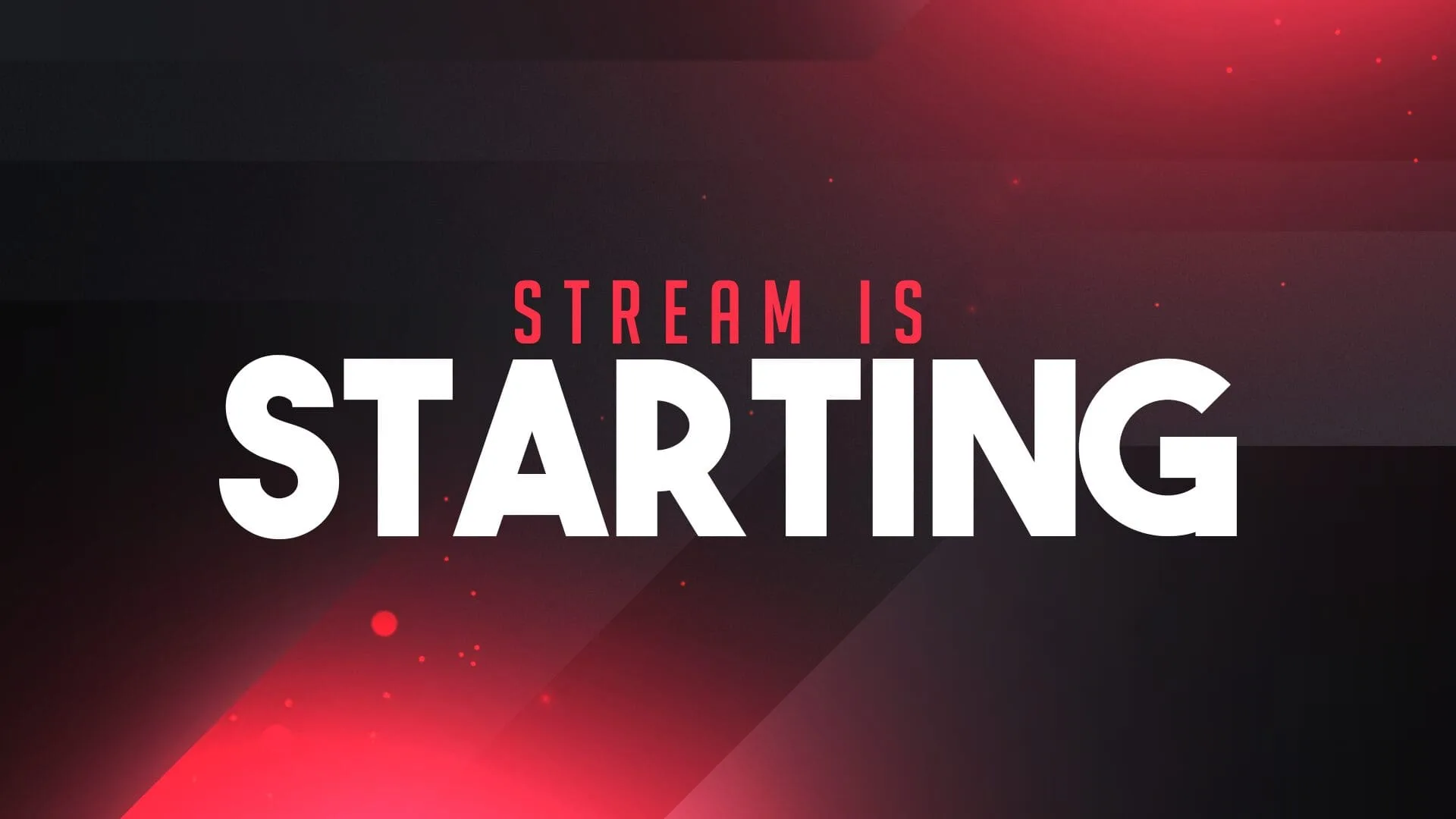
- Use Scenes for Different Layouts – Set up multiple scenes for different segments of your stream, such as gameplay, just chatting, and intermission screens. This allows for smooth transitions between different stream phases.
Best Practices for Overlay Performance
- Avoid Clutter: Keep overlays minimal to maintain focus on gameplay.
- Optimize Performance: Reduce CPU load by using lightweight overlays and limiting animations.
- Match Brand Aesthetic: Stick to a consistent color scheme and font style to maintain a recognizable brand identity.
Understanding Stream Alerts
What Are Stream Alerts and Why Do They Matter?
Stream alerts are pop-up notifications triggered by viewer interactions, such as follows, donations, and subscriptions. They are essential for increasing engagement and making viewers feel recognized and appreciated. A well-customized alert system can contribute to the personality of your channel.
Choosing the Right Alert System
Popular alert systems include:
- Streamlabs Alerts: Offers a wide variety of pre-built and customizable alert templates.
- StreamElements Alerts: Provides cloud-based alerts with the ability to fully customize graphics and animations.
- Muxy & Other Platforms: Additional alternatives that offer specialized alert options with unique animations and interactions.
Setting Up Alerts in Streaming Software
Step-by-Step Alert Setup
- Choose an Alert Provider – Sign up for a service like Streamlabs or StreamElements and link your streaming account.
- Create a New Alert Box – Configure the look and behavior of your alerts, adjusting animation styles, text, sound effects, and delays.
- Add Browser Source in OBS/Streamlabs – Copy the generated alert URL from your chosen provider and add it as a ‘Browser Source’ in your streaming software.
- Test Alerts – Run test alerts to ensure they display correctly and troubleshoot any positioning or volume issues before going live.
Customizing Alerts for Brand Consistency
- Sound Effects & Animations: Choose sounds and animations that fit your brand and theme without being too intrusive.
- Alert Variations: Set different animations for various types of engagement, such as big donations versus new followers.
- Custom GIFs & Graphics: Design or commission custom visuals to make your alerts stand out and feel unique to your channel.
Advanced Overlay & Alert Customization
Animated vs. Static Overlays
- Animated Overlays: More engaging but require higher system resources. Ensure that the animations do not lag your stream.
- Static Overlays: Lightweight, clean, and professional, ideal for lower-end PCs or mobile streaming.
Using Widgets and Plugins
- Goal Meters: Display subscriber or donation goals visually to encourage audience participation.
- Polls & Timers: Integrate interactive elements to keep the stream dynamic.
- Chatbot Integration: Highlight chat messages on-screen to enhance engagement with viewers.
Mobile-Friendly & Minimalist Options
- Simplified UI: Less clutter for mobile viewers ensures a smoother watching experience.
- Readable Fonts: Ensure all on-screen text is legible across various devices and screen sizes.
Where to Find the Best Streaming Overlays & Alerts
Best Websites for Overlays and Alerts
- OWN3D (own3d.tv) – High-quality premium overlays.
- StreamElements (streamelements.com) – Free and paid overlays with full customization.
- Nerd or Die (nerdordie.com) – Customizable animated overlays and alert packs.
- Fiverr (fiverr.com) – Commission custom overlays and alerts from designers.
DIY Overlay Creation Tools
- Canva: User-friendly tool for static overlay designs.
- Photoshop: Advanced customization with professional design tools.
- After Effects: For creating animated overlays and alerts.
Conclusion
Setting up the ultimate streaming overlay and alert system requires the right combination of software, customization, and brand consistency. Whether you use free assets or invest in premium overlays, your choices should align with your branding and enhance viewer engagement.
Key Takeaways:
- Choose overlays that balance aesthetics with functionality.
- Optimize alerts for engagement and recognition.
- Use widgets and plugins to enhance interactivity.
By following this guide, you can transform your stream into a professional, engaging, and visually stunning experience. Start customizing your overlays and alerts today to take your streaming game to the next level!